While uploading journal entries using Microsoft Excel Add-in for AX, we received the following error message:
Function DimensionDefaultingEngine::constructForMainAccountId has been incorrectly called. Document General Journals could not be created. Error details: Function DimensionDefaultingEngine::constructForMainAccountId has been incorrectly called.
This issue was caused by a ledger account that does not exist in any of the account structures. It was not a very meaningful error message, especially compared to the one that throws when a ledger account is missing from the ledger.
I have seen another hard to identify issue regarding to the same cause, in service order postings. Whenever a new ledger account is created, the user is better to double check the account structures to verify that the account is covered by one of the account structures in order to avoid hard to resolve meaningless errors that can occur.
Monday, June 3, 2013
Saturday, February 23, 2013
MCITP Certification for Microsoft Dynamics AX 2012
I inquired about MCITP (Microsoft Certified IT Professional) Certification for Microsoft Dynamics AX 2012 requirements to Dynamics Certification Team and here is the answer I got:
From: Dynamics-cert <mbs-cert@microsoft.com>
Date: Thu, Feb 21, 2013 at 3:38 PM
Subject: Re: Requirements for Microsoft Certified IT Professional for Microsoft Dynamics AX 2012 (KMM25790854V79029L0KM)
To: Altan Kalayci <altanka@gmail.com>
Hello Altan,
Thank you for contacting Microsoft about MCITP certification on Dynamics AX 2012.
I can understand your concern in this regards.
Having checked the details I found that the MCITP Certification on Microsoft Dynamics AX 2012 is not released. Hence, the exam requirements for this certification are not available yet. Once this certification will be released, you will be able to find this information on Microsoft Learning website.
Currently, we do not have any information regarding the release date of this certification.
If there is anything else we can do for you, please let us know. Thank you for using Microsoft.
Juned
mbs-cert@microsoft.com
http://www.microsoft.com/ dynamics/using/training.mspx
Tel: 1-800-456-0025, Option #4
Monday through Friday
6:30am to 5:30pm Pacific Time
From: Dynamics-cert <mbs-cert@microsoft.com>
Date: Thu, Feb 21, 2013 at 3:38 PM
Subject: Re: Requirements for Microsoft Certified IT Professional for Microsoft Dynamics AX 2012 (KMM25790854V79029L0KM)
To: Altan Kalayci <altanka@gmail.com>
Hello Altan,
Thank you for contacting Microsoft about MCITP certification on Dynamics AX 2012.
I can understand your concern in this regards.
Having checked the details I found that the MCITP Certification on Microsoft Dynamics AX 2012 is not released. Hence, the exam requirements for this certification are not available yet. Once this certification will be released, you will be able to find this information on Microsoft Learning website.
Currently, we do not have any information regarding the release date of this certification.
If there is anything else we can do for you, please let us know. Thank you for using Microsoft.
Juned
mbs-cert@microsoft.com
http://www.microsoft.com/
Tel: 1-800-456-0025, Option #4
Monday through Friday
6:30am to 5:30pm Pacific Time
Tuesday, January 15, 2013
Suggestions on Year End Closing and Trial Balance Report
Recently one of my customers complained about having zero (0) opening balances on the Trial Balance report for Balance Sheet accounts after year end closing process ran. Here are the suggestions and tips I had for him which might be useful for general audience.
1- Closing
Process Suggestions
a. ” Close-of-year transactions” report under
GL>Reports>Transactions can be used to see all the transactions occurred during the
closing process.
b. Suggestions on the “GL>Periodic>Fiscal Year
Close> Opening Transactions” process
i.
Enter a voucher
number manually in the process. That makes it easier to track the transactions
later.
ii.
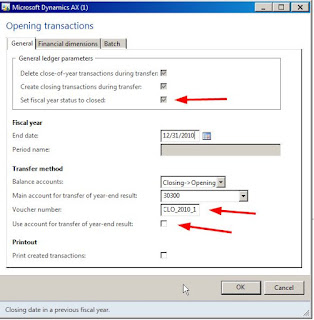
Do no select “Use
account for transfer of year-end result”. This checkbox is supposed to only
show up if your primary address is Spain. Probably due to a bug, it shows up
here. It is removed in the new R2 version.
However, selecting or de-selecting it has no effect – yet I
suggest not to select it.
iii.
As you see in the
Opening Transactions form below the customer has a parameter setting to set the fiscal
year status to “closed” automatically after the closing process finishes. This
is coming from General Ledger parameters (please refer to suggestion 1-c)
c. In “GL > Setup > General ledger parameters” under
Fiscal Year Close fast tab – unselect the “Set Fiscal Year Status to closed”
checkbox. Because this automatically sets the fiscal year status to closed
after the process completes and a “closed” period cannot be “re-opened”. For
instance, if there was an issue during this closing process and if you would
like to rerun the Opening Transactions, you will not be able to run it in this
case since the periods are already closed. Alternatively, you can set the
status for fiscal periods to “On Hold” which prevents further transactions but
also enables you to reopen if need be. (open GL>Setup>Ledger and click
“Ledger Calendar” button which opens the Ledger Calendar form where you can set
the status manually.
2-
Trial Balance
Suggestions
a. Do not forget to Update Balances before running a trial
balance report. Prior to running a Trial Balance report go to
“GL>Setup>Financial Dimensions>Financial Dimension sets” and click the
“Update balances” button after selecting the financial dimension set you are
going to be using in your TB report.
b. This final suggestion explains why the Trial Balance
report shows 0 opening balances even after updating the balances. This is kind
of tricky. I personally think the name of the check box “Include opening”
is not intuitive and is misleading. If you select your Detail Level as
“Summary”, then do not select “Include Opening” or “Include Closing” if you
would like to see opening and closing balances reported in the summary header.
These check boxes are meant to include opening and closing transactions in the
transaction list when a “detailed” TB report is prepared. Here is an
explanation from MS what those checkboxes mean:
Based on these explanations, I think what you would like to do is to uncheck
those options. And then you will get the following TB report:
Here is the result with opening balances reported as non-zero for the balance sheet account:
Friday, January 11, 2013
AX 2012 R2 Demo - Help Server Issue
If you have installed AX 2012 R2 Demo Image to Hyper-V and received the following error message while opening help
"The location of the help server has not been specified. Contact your system administrator for assistance"
you need the set the "Help Service URL" in Help System Parameters - under System Administration > SetUp > System. The typical help service URL is "http://<host:port>/DynamicsAX6HelpServer/HelpService.svc" on Port 80. The host on the R2 Image is "DynamicsHelpServer".
"The location of the help server has not been specified. Contact your system administrator for assistance"
you need the set the "Help Service URL" in Help System Parameters - under System Administration > SetUp > System. The typical help service URL is "http://<host:port>/DynamicsAX6HelpServer/HelpService.svc" on Port 80. The host on the R2 Image is "DynamicsHelpServer".
Thursday, January 10, 2013
AX 2012 R2 Enterprise Portal not working on VM image on VirtualBox
If you have installed the AX 2012 R2 demo on VirtualBox and the Enterprise Portal or Role Center is not working, the fix might be as simple as editing the Hosts file. Here is the issue I received when I clicked Home link on Dynamics AX 2012 rich client.
In order to resolve this issue, I edited the C:\Windows\System32\drivers\etc\Hosts file in a text editor and added the following two lines
127.0.0.1 dynamicsax.contoso.com
127.0.0.1 sharepoint
Here is how it looks like
Couple of users noted that the fix above alone did not make their Enterprise Portal work. On top of the fix above you may need to change the binding in IIS manager.
1- Open IIS manager and navigate to Sites\DynamicsAX.
2- Go to Actions->Bindings.
3- Change the ip address to 127.0.0.1.
This may take a few minutes the first time to start.
Thanks to Alok Joshi for this insight which he quoted it from Arttu Vuorinen.
127.0.0.1 dynamicsax.contoso.com
127.0.0.1 sharepoint
Here is how it looks like
Couple of users noted that the fix above alone did not make their Enterprise Portal work. On top of the fix above you may need to change the binding in IIS manager.
1- Open IIS manager and navigate to Sites\DynamicsAX.
2- Go to Actions->Bindings.
3- Change the ip address to 127.0.0.1.
This may take a few minutes the first time to start.
Thanks to Alok Joshi for this insight which he quoted it from Arttu Vuorinen.
Tuesday, January 8, 2013
Start Debugging in AX 2012 - for non-developers
In order to start debugging the Dynamics AX code first you need to enable debugging for the current user. You can enable the debugging for the current user by setting the Debug mode to "When Breakpoint" under "File/Tools/Options/Development/Debug" tab.
If you don't know where to start debugging an issue that throws an Infolog message, you can put a breakpoint to Info:add class.This will make the process stop for debugging for every infolog message.
Then in the debugger, when the process stops you can traverse the callstack in order to find the underlying issue.
If you don't know where to start debugging an issue that throws an Infolog message, you can put a breakpoint to Info:add class.This will make the process stop for debugging for every infolog message.
Where is the user information kept in Dynamics AX?
The name of the table that keeps the user information in Dynamics AX is "UserInfo". But you cannot access this table under "AOT/Data Dictionary/Tables" like any other database tables in AX.
You can reach this table and browse it under "AOT/System Documentation/Tables".
In order to browse the table right-click and use "Table Browser":
You can reach this table and browse it under "AOT/System Documentation/Tables".
In order to browse the table right-click and use "Table Browser":
Subscribe to:
Posts (Atom)


